The Complete Beginner's Guide to Gemini (2026)
By AI Learning · Last updated September 17, 2026
You’ve probably used Gemini already, in a Google search, a Gmail draft, a suggestion inside Docs, without ever opening a dedicated app for it. This guide exists for the part most people never get to: what Gemini actually is, when to reach for it over ChatGPT or Claude, and how features like Gems, Connected Apps, and Canvas turn it from a search-bar footnote into something you genuinely rely on.
What You'll Learn
You don't need to read this whole guide to know it's worth reading. Here's exactly what you'll walk away with:
Understand what Gemini actually is, and why it isn't quite like Claude or ChatGPT
Know when to reach for Gemini over the other two, and when it genuinely doesn't matter
Understand Gems, Connected Apps, Canvas, and Deep Research without the marketing copy
See why Gemini showing up inside Search, Gmail, and Docs matters more than most people realize
Build your own Gem and know exactly what it can and can't remember
Know exactly where to go next once you're through this page
Here's the shape of the journey ahead:
Getting Started
Try Gemini immediately and see why it's already around you
Understanding Gemini
What it is, how it compares, what it can't do
What Gemini Can Actually Do
Gems, Connected Apps, Canvas, Deep Research, Live
Practical Workflows
Real prompts, real mistakes, building your first Gem
Going Further
Frameworks, privacy, and Gemini for your profession
Continue Learning
FAQ, and exactly where to go next
Quick Start
Reading about a tool and using it are different things. Before any explanation, try Gemini once, so everything after this is grounded in something you've actually seen.
- 1
Go to gemini.google.com
Sign in with a Google account. If you have Gmail, you already have one, and the free plan covers everything in this Quick Start.
- 2
Paste this prompt
Copy the prompt below exactly as written. It works with anything as the "document," so don't overthink it yet.
- 3
Upload a simple document
Any PDF, email, or text file on your computer works: a lease, a receipt, an old assignment. Attach it with the paperclip icon before sending.
- 4
Read the result
Notice that Gemini answers using the actual content of your file, not a generic response. That's the entire point of this exercise.
Read the document I've attached and tell me, in three sentences, what it's actually about and who it seems to be written for.
”That's it. You've just watched Gemini do something a search engine structurally can't: read something specific to you and answer a specific question about it. Everything from here explains why that worked, and what else it can do that you've probably walked past without noticing.
Note
If that felt useful, know it's the simplest thing Gemini does. Later in this guide you'll see it build a document with you instead of just handing one back, run a multi-step research task with sources, and answer a question about your own Gmail if you let it.
Why Learning Gemini Matters Right Now
Here's the thing about Gemini that makes it different from the other two guides in this series: there's a real chance you've already used it without deciding to.
If you've searched Google recently and seen an AI-written answer above the usual links, that was Gemini. If Docs ever offered to draft a paragraph for you, or Gmail suggested how to finish a sentence, that was Gemini too. If your Android phone has a "Gemini" option when you hold the power button, that's the same model again, just wearing a different hat. Most people have brushed against Gemini a dozen times without ever opening gemini.google.com on purpose.
That's not a small detail, it's the actual shape of the product. Claude and ChatGPT are destinations: you go to a website or an app to use them. Gemini is that too, but it's also the same underlying AI quietly built into tools you already open every day. Learning Gemini properly means learning both halves: the dedicated app with its own features, and the parts of Google you're probably already using that happen to be Gemini underneath.
The skill worth building here is knowing when to treat those two halves as one thing. A quick question typed into the Search bar and a real conversation at gemini.google.com are not the same experience, even though the same model answers both. This guide covers the dedicated app in depth, because that's where the real capability lives, and it covers the ecosystem integration honestly, because pretending it doesn't matter would leave out half of what makes Gemini worth learning specifically.
What Is Gemini?
Gemini is Google's family of AI models and the assistant built on top of them, developed by Google DeepMind, the research group formed when Google merged its two AI labs in 2023. Unlike Claude and ChatGPT, which each came from a company built primarily around one product, Gemini comes from a company that already ran the world's most-used search engine, email service, and productivity suite, and that history shapes almost everything about how Gemini actually works.
Google ships new versions of the underlying models regularly, generally split into a slower, more capable option and a faster, lighter one built for quick everyday answers. The exact names change often enough that pinning one here would date this page within months; what stays true is the shape of the choice itself.
Do you need to pick a model?
Gemini usually offers a fast, default option and a slower, more capable one for harder problems: real analysis, multi-step reasoning, anything you'd actually want double-checked. As a beginner, the default handles almost everything in this guide. Reach for the more capable option when an answer feels shallow on something genuinely complicated, not as your everyday setting.
Like any modern AI chat tool, Gemini holds a conversation in mind rather than answering each message as a cold lookup: ask a follow-up and it remembers the file you uploaded or the constraint you mentioned two messages ago. That baseline is shared with Claude and ChatGPT. What's specific to Gemini is everything built around that baseline: a real-time voice and camera mode called Live, a collaborative building surface called Canvas, custom assistants called Gems, an agentic research mode, and, more than either of the other two, a presence across the rest of Google that neither Claude nor ChatGPT has an equivalent to.
Gemini vs. ChatGPT and Claude
If you've read either of the other two guides in this series, or seen any confident "best AI tool" ranking online, you've seen the same overreach: a single winner declared across the board. That doesn't hold up in practice. All three are genuinely strong, and the honest differences are specific, not overall.
Choose Gemini if
- You already live inside Gmail, Docs, or Android, and want the same assistant available without switching apps
- You want it to actually reason over your real Gmail, Drive, or Calendar, not just what you paste into a chat
- You want strong native image generation and a real-time voice and camera mode in the same place
Choose ChatGPT or Claude if
- You want a large public library of ready-made custom assistants to try before building your own
- Tone and voice matter for something with your name on it: client emails, personal writing, a piece you'll actually publish
- You want a single standalone app, with no dependency on a Google account or the wider Google ecosystem
| Area | Gemini | ChatGPT and Claude |
|---|---|---|
| Where it lives | A dedicated app, plus built into Search, Gmail, Docs, and Android | Standalone apps and websites you have to go open |
| Personalization | Can connect to your real Gmail, Drive, Calendar, and Photos for grounded answers | No real equivalent; context is limited to what you paste into a chat |
| Custom assistants | Gems: simple to build, personal, no public marketplace to browse | ChatGPT's Custom GPTs have a full public store; Claude's Projects are closer to Gemini's Gems |
| Image and voice | Strong native image generation, plus a real-time voice and camera mode (Live) | ChatGPT also generates images natively and has its own voice mode; Claude does neither today |
| Long-form writing tone | Solid, though less specifically known for it | Claude is the one most people reach for on tone-sensitive writing |
Here's what that looks like in practice. Open Gmail, ask Gemini's side panel to summarize an unread thread you're dreading, and it answers using the actual thread, no copying and pasting required. Ask ChatGPT or Claude the same thing and you'd need to paste the email in first, since neither has a standing connection to your inbox. Flip it around: ask all three to build you a specialized assistant for reviewing cover letters, and ChatGPT's version can be published to a public store other people browse and try, where Gemini's Gem stays personal to your account by design.
Neither pattern is a flaw, they're different bets about what most people actually want. Plenty of people run more than one: Gemini for anything touching their Google account, Claude or ChatGPT for standalone writing and research. Nothing about using one prevents using another.
Chats and Context: What Gemini Actually Remembers
This is worth its own space, because Gemini's version of "context" works on two different levels, and mixing them up is the single most common source of confusion for new users.
The first level is the one every chat AI has: everything said inside one conversation stays available for the rest of that conversation, a file you uploaded, a correction you made two replies ago. Close the chat or start a new one, and that context is gone unless it's saved somewhere else.
The second level is specific to Gemini, and it's the more interesting one. If you turn on Connected Apps, covered properly in the next chapter, Gemini's sense of context stops being limited to what you've typed. It can draw on your actual Gmail, Drive, and Calendar when it's relevant to what you're asking, not because you pasted it in, but because you gave it permission to look. That's a genuinely different idea from anything in Claude or ChatGPT's regular chat behavior, and it's why the escalation in this guide looks different from theirs too.
A rough rule that works
Start a new chat when the topic genuinely changes, not just when the conversation gets long. And remember that a regular chat's memory of your files and Google account are two separate things: one lives in the conversation, the other only works if you've turned it on.
What Gemini Can't Do (Yet)
A guide that only tells you what a tool is good at isn't trustworthy, it's marketing. Here's where Gemini genuinely falls short, stated plainly.
It doesn't know anything after its training cutoff unless it's actively searching for current information
It can state something incorrect with complete confidence, especially on obscure facts, exact figures, and citations
Connected Apps and Personal Intelligence aren't available everywhere yet; as of this writing, they're excluded in the EEA, the UK, Switzerland, and Nigeria
A Gem only knows what you've told it directly or given it as a Knowledge file, it doesn't automatically inherit your connected Gmail or Drive
It can't take real action in the world on its own, sending an email, booking something, unless a specific connected tool explicitly allows it
A concrete example: ask Gemini for today's exchange rate or a live stock price when it isn't actively searching, and it will either say it can't check, or, less helpfully, produce a plausible-sounding number that's simply made up.
Without an active search, illustrated
That's not a rare glitch, it's a predictable consequence of how the model actually works, and expecting it up front is far more useful than being caught by it later. Treat any specific number, date, or citation Gemini gives you as a claim worth a second look, not a settled fact, especially when getting it wrong would actually cost you something.
Ready to get more out of Gemini?
Everything you’ve read so far gives you the foundations.
If you’d rather learn by practicing than by reading, AI Learning turns these same concepts into structured lessons, quizzes, and guided learning paths designed to help you build real confidence using Gemini.
How you'll learn
Learn Gemini one concept at a time through structured lessons, practical examples, quizzes and guided learning paths.
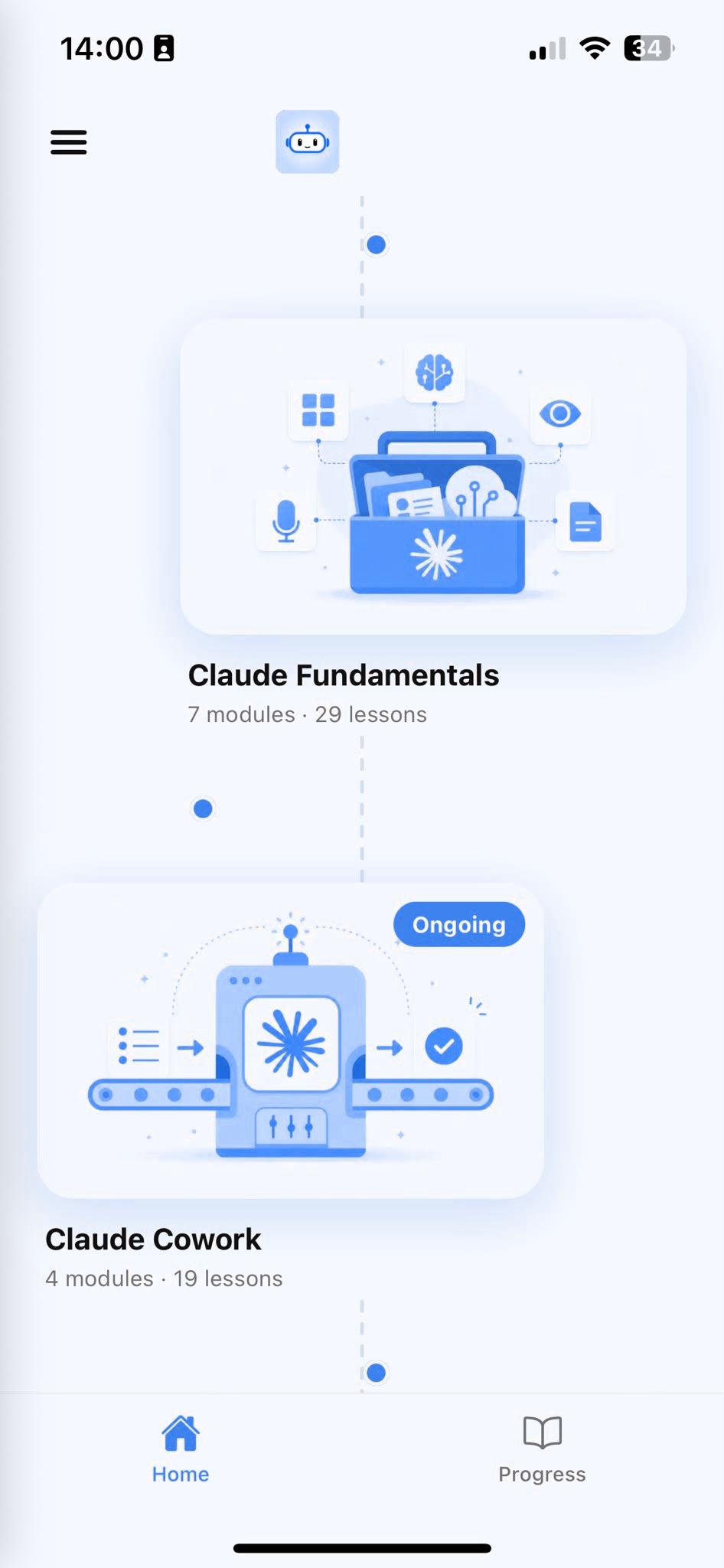
Browse Courses
Choose what to learn from a structured library of AI lessons.
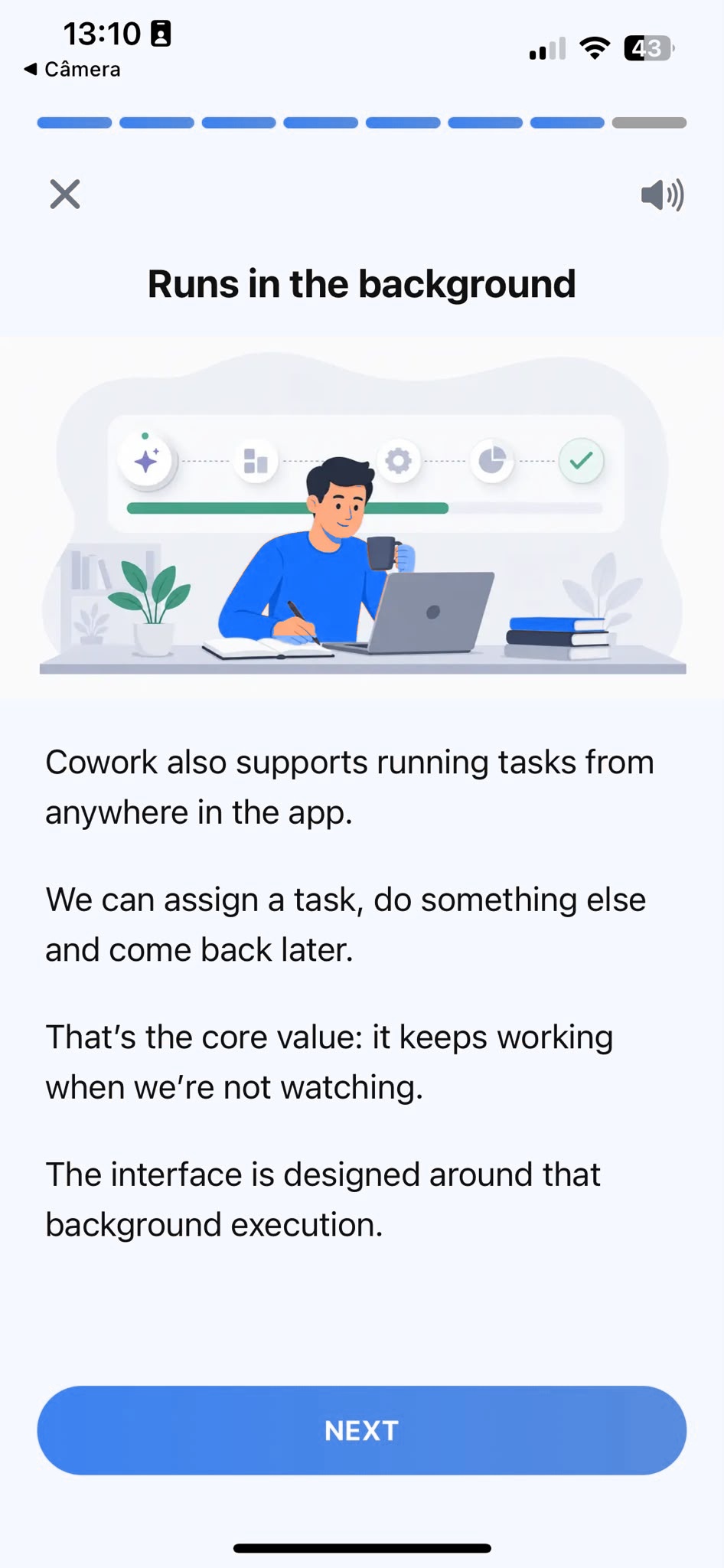
Learn
Short, focused lessons that build from fundamentals to real-world tasks.
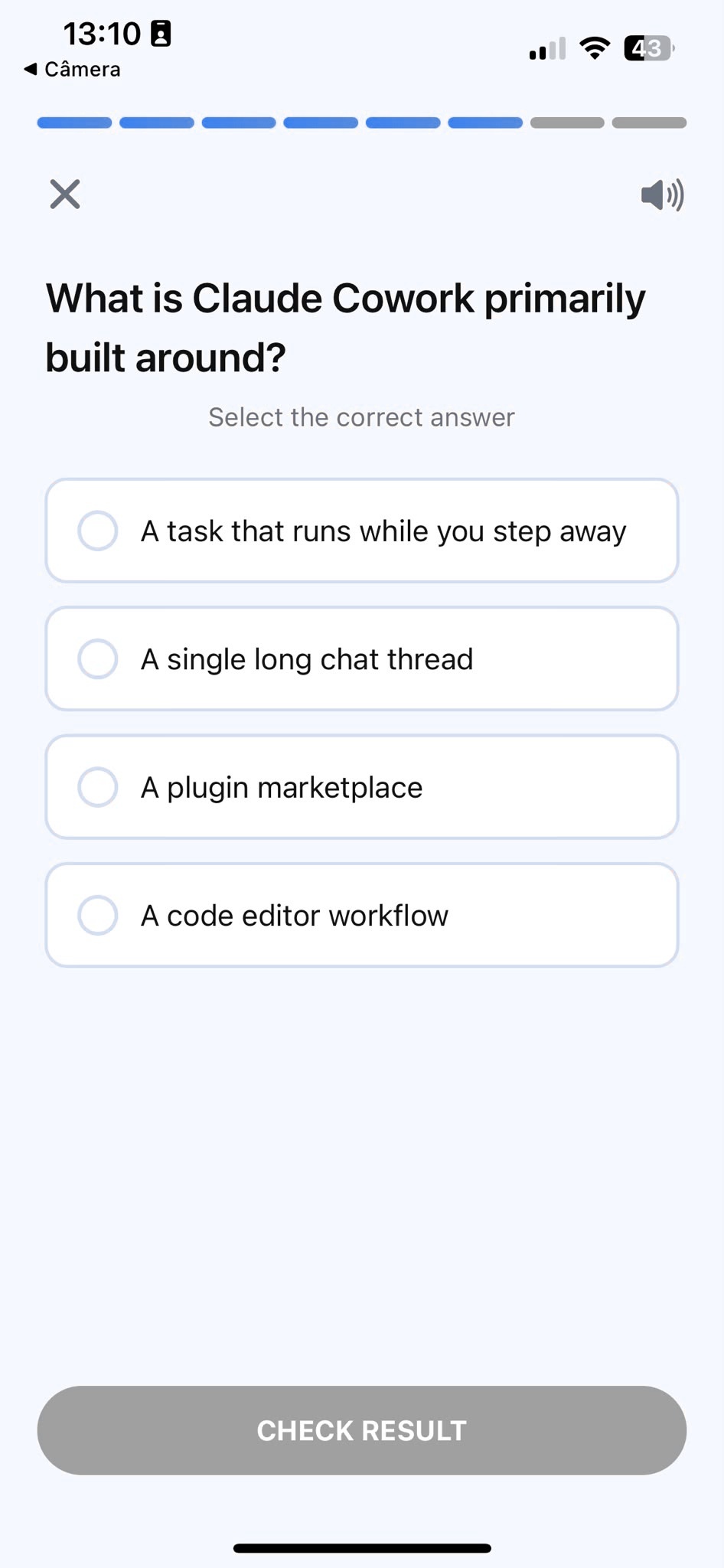
Quiz
Test your understanding right after each lesson, not at the end.
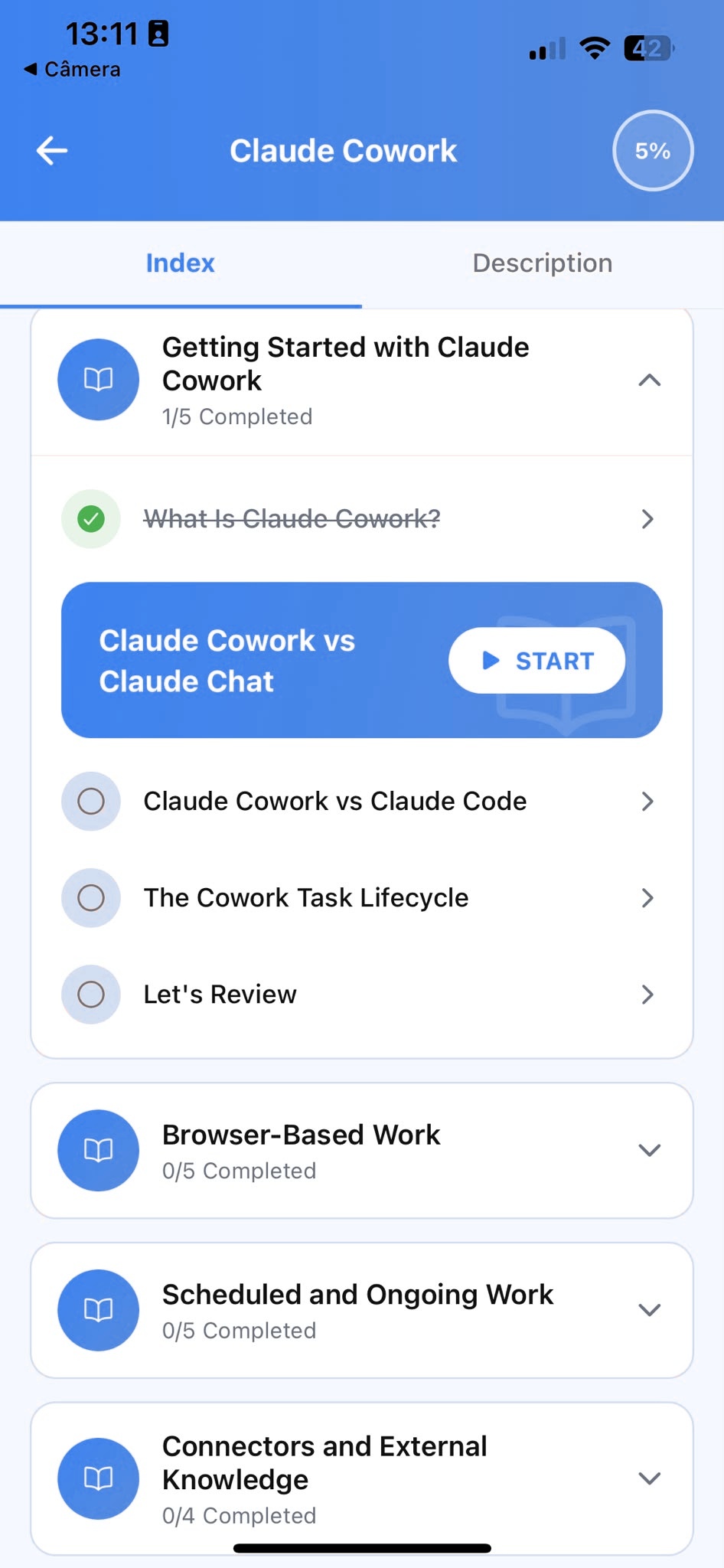
Track Progress
Pick up exactly where you left off, on any device, at any time.
How Gemini Actually Works
Most explanations of Gemini lead with feature names, Gems, Canvas, Deep Research, before explaining what problem any of them solves. That teaches vocabulary, not judgment. Here's the reverse: the actual escalation first, then the names that go with each step.
A plain conversation already understands what you've told it
Everything in the current chat stays available: an uploaded file, a constraint from three messages ago, a correction you made once.
You can build a specialized assistant for one recurring job
Configured once with its own instructions and optional reference files, then reused whenever that specific job comes up again.
It can reason over your real Gmail, Drive, and Calendar
Not just what you paste in: with permission, it can look at your actual inbox, files, and schedule to answer something concretely.
You can build something together instead of just receiving a reply
A document, a simple app, or a set of slides you both edit in the same space, not a finished wall of text handed back once.
It can run its own multi-step research using the web and your files
Describe an outcome, not a question, and it plans an approach, searches on its own, and comes back with a structured report.
That's a natural progression, from the simplest way of using Gemini to the most personalized:
A single conversation
SimplestEverything lives in one chat. No setup, and it already covers most everyday questions.
A Gem
SpecializedA configured, reusable assistant built for one specific, recurring job.
Connected Apps
Most personalizedGemini reasoning over your real Gmail, Drive, and Calendar, not just what's in the chat.
Those ideas have official names inside Gemini:
- A configured, purpose-built assistant is a Gem: your own instructions, an optional set of reference files called Knowledge, built once at gemini.google.com/gems/create and reusable from then on. There's no public Gem store to browse the way ChatGPT has one, Gems are personal by design, though you can share one directly with specific people.
- Letting Gemini look at your actual Google account is Connected Apps, sometimes shown as Personal Intelligence: turn on Gmail, Drive, Calendar, or Photos individually, and Gemini can answer using what's actually there instead of asking you to describe it. Google states plainly that it doesn't train its models on this connected content, it's used to answer you, not to improve Gemini for everyone else.
- A shared building surface for a document, a simple app, slides, or code is Canvas. Unlike a normal reply, you and Gemini both edit inside it, and a finished Canvas document can be turned into other things entirely, an audio-style overview you can listen to, or a short quiz generated from its content.
- An agentic, multi-step research process is Deep Research: it plans an approach, works through dozens of sources on its own over several minutes, and returns a structured report with citations. Turn on Connected Apps first and it can pull in your own Gmail or Drive as sources too, not just the open web.
Here's why the order matters. Someone who hears "Connected Apps" as a settings toggle before feeling the actual friction, describing the same email thread to Gemini for the third time this month, rarely bothers turning it on. Someone who's already tired of that repetition turns it on immediately, because they already know exactly what it fixes.
None of this is required to get real value out of Gemini. A single well-used conversation, no Gem, nothing connected, already covers most of what this guide teaches. These matter once you outgrow a single chat window, which for most regular users happens sooner than they expect.
Files, Images, and Nano Banana
Typing everything by hand wastes the one thing Gemini is actually good at: reading something specific and answering questions grounded in it. Attach a file with the paperclip icon in the message box and ask something precise about it, rather than a generic "summarize this."
A few things worth knowing about how this actually behaves. Gemini can read PDFs, Word documents, spreadsheets, and plain text directly, and it can read an image too, a chart, a table, a photo of a handwritten note. Upload two files in the same message and ask it to compare them directly, rather than uploading one, asking about it, then uploading the second separately.
Here are last quarter's and this quarter's expense reports. Compare them and tell me the three categories with the biggest percentage increase, with the actual numbers for each.
”Gemini also generates images natively from a written description, then lets you ask for specific edits the same way you'd revise a paragraph of text. Google's image models for this have picked up an unofficial nickname worth knowing if you've seen it mentioned online: "Nano Banana" is what people call the Nano Banana family of Gemini's image generation models, the same capability, just a name that stuck harder than the official one.
Tip
Ask for exactly what you need from a document, not a general summary. "Summarize this" produces a flat overview. "Find every clause that lets the vendor raise prices without 30 days' notice" produces something you can actually act on. The same specificity applies to images: "make the lighting warmer" beats starting over with a longer description from scratch.
Gemini Across Google: Search, Workspace, and Android
This is the chapter that genuinely doesn't exist in a Claude or ChatGPT guide, because neither of those is built into an entire existing ecosystem the way Gemini is.
Google Search
AI-written answers can appear directly above the usual list of links for questions that benefit from a synthesized answer, not just a page to click through to.
Gmail
A side panel can summarize a long thread, draft a reply, or answer a question grounded in the actual email you're looking at.
Docs, Sheets, and Slides
The same side panel can draft a paragraph, restructure a messy outline, or build a first pass at a spreadsheet formula, right inside the document.
Android
On many phones, Gemini has replaced or sits alongside the built-in assistant, reachable by holding the power button, for voice commands and quick questions.
The practical upside is real: a lot of what you'd otherwise open a separate chat for, drafting a reply, summarizing a document you're already looking at, doesn't need a separate chat at all. The practical downside is that it's easy to only ever meet Gemini this way, in small, scattered moments, and never realize the dedicated app has a considerably deeper version of the same assistant waiting at gemini.google.com. Both halves are worth knowing. Most people only know one.
Gemini Live: Real-Time Voice and Screen Sharing
Live is a real-time, spoken conversation with Gemini, not a text chat with a voice read aloud afterward. Open it from the Gemini app and talk normally, interrupt it, change the subject mid-sentence, the same way you would with a person on a call.
What makes Live specifically worth knowing about, beyond voice alone, is that you can share your screen or point your phone's camera at something while you talk, and Gemini responds to what it's actually seeing in real time.
(Spoken, while pointing your phone at a bike with a wobbling wheel) Can you see what's wrong with this? Walk me through fixing it step by step.
”That's a genuinely different kind of interaction from typing a description of the bike and waiting for a written answer. It's built for the moments when describing something in words would take longer than just showing it.
Note
Live is best for a real back-and-forth in the moment, cooking, troubleshooting something physical, practicing a conversation out loud, not for anything you need a careful written record of afterward.
Your First Real Conversation
Most first prompts sound like "give me feedback on this." That's not a bad instinct, it's just too little to work with, so Gemini fills every gap with its safest, most generic guess. Watch what happens as the same request gets more specific.
Bad
Too generic"Give me feedback on this outline." No audience, no goal, no sense of what "good" looks like here.
Better
Getting thereAdds who it's for and why, but still leaves Gemini guessing at what kind of feedback actually helps.
Excellent
Ready to useNames the specific weak point to focus on and how blunt the feedback should be.
Bad prompt: "Give me feedback on this outline." [pasted outline]
Technically answerable, completely generic. Gemini doesn't know who the presentation is for, what's actually at stake, or what kind of feedback would help, so it defaults to the safest, most even-handed notes that exist.
Better prompt: "Give me feedback on this outline for a presentation to senior leadership about delaying a product launch." [pasted outline]
A real improvement. Now it knows the stakes and the audience, so the feedback is at least about the right thing. It still doesn't know how blunt to be, so it might soften things you'd rather hear plainly.
Excellent prompt: "Give me feedback on this outline for a presentation to senior leadership about delaying a product launch. Be blunt about anything that sounds like an excuse rather than a reason, and flag the one slide most likely to get pushback." [pasted outline]
This version adds the two things that separate a good result from a great one: an explicit instruction about tone, so it doesn't default to gentle, and a specific thing to look for, not just general feedback. Naming exactly what you're worried about is often more useful than asking for feedback in the abstract.
The excellent prompt, illustrated
Tip
The gap between "bad" and "excellent" isn't cleverer wording. It's two concrete additions: the real stakes, and a specific thing to focus on. That pattern holds well beyond presentations.
Once a draft is close, keep going rather than starting a new chat. Point at exactly what's off, "the second bullet on slide 3 still sounds defensive, rewrite just that one," not "make it better", and Gemini has something concrete to fix instead of guessing again.
The Biggest Beginner Mistakes
Every beginner makes some version of these. Knowing them ahead of time saves the two or three frustrating moments it usually takes to learn them the hard way.
Mistake 1: Only ever meeting Gemini through the Search bar
Assuming that's the whole product, and never opening gemini.google.com directly, means missing Gems, Canvas, Deep Research, and Live entirely. The AI answer above your search results is a small fraction of what's actually there.
Mistake 2: Assuming Personal Intelligence is already on
Connected Apps is opt-in, not automatic. Gemini won't look at your Gmail or Drive until you specifically turn that connection on in settings.
Mistake 3: Expecting a Gem to know things it was never given
A Gem only knows its own instructions and whatever Knowledge files you attached to it. It doesn't automatically inherit your connected Gmail, Drive, or anything from your regular conversations.
Mistake 4: Assuming search grounding is always on
Getting a confidently outdated answer and not realizing Gemini wasn't actively searching for that specific message. If the date or the facts feel off, that's usually why.
Mistake 5: Accepting the first draft as final
The first response is a starting point, not the finished product. A specific correction on the exact part that's wrong gets you further, faster, than a full re-prompt from scratch.
Mistake 6: Trusting a confident answer you can't personally check
Gemini states something wrong with exactly the same confidence as something right. Treat any specific number, date, or citation on an unfamiliar topic as worth verifying, not a settled fact.
Building Your First Gem
Most of this guide is about using Gemini as it comes. A Gem is the opposite: a version of Gemini configured once, for one job, so you stop re-explaining the same context every time that job comes up.
- 1
Go to gemini.google.com/gems/create
This is the one part of building a Gem that only works in the web app, even though the finished Gem works everywhere afterward.
- 2
Name it and write its instructions
Be specific about the job, the tone, and anything it should never do. A Gem is only as useful as the instructions you actually give it.
- 3
Attach Knowledge files, if it needs them
A few examples of your own writing, a style guide, past documents it should match, uploaded once so it doesn't need re-explaining each time.
- 4
Save it and test it with a real request
Not a hypothetical one. Give it an actual task you have right now and see where the instructions need sharpening.
Here's a concrete example: a Gem built to draft email replies that actually sound like you, not a generic assistant voice.
You draft short, direct email replies in my voice. I'm friendly but brief, I never open with "I hope this finds you well," and I always end with a specific next step rather than an open-ended question. Match the tone of the example emails I've attached.
”Attach three or four real emails you've actually sent as Knowledge files, and the difference is immediate: the drafts stop sounding like a template and start sounding like something you'd actually send with minor edits.
Note
Once saved, a Gem shows up across the Gemini app, the mobile app, and the Workspace side panel, wherever Gemini appears, not just where you built it. Editing its instructions still only works from the web app.
Your First Real Workflow: One Input, Many Outputs
The habits so far, better prompts, real feedback, are worth a lot alone. Chained together, they're worth considerably more. Here's what one messy input can become in a single sitting.
Say you've got a page of raw notes from a client meeting sitting in a Google Doc: a couple of decisions, a due date, one open question nobody resolved, and a tangent about next quarter that doesn't belong anywhere yet. Instead of manually turning that into an email, then a separate summary, then a list of follow-ups, hand Gemini the whole mess once and ask for all three.
Here are my raw notes from today's client call: [paste notes]. From this, give me three things: a follow-up email to the client that leads with the decisions we made, a clean summary formatted for a Google Doc I can share internally, and a short list of follow-ups worded so they're ready to paste straight into Calendar reminders.
”Input
Messy call notes from a Google Doc
Scattered decisions, one open question, an unrelated tangent
Client follow-up email
Leads with what was decided, not a play-by-play recap
Internal Doc summary
Clean and shareable, no assumed context for the reader
Calendar-ready follow-ups
Each one worded short enough to paste directly as a reminder
One input, three genuinely different, immediately usable outputs, from a single conversation instead of three separate ones. The next time a similar call happens, you already know what to ask for, so it takes less specifying, not more.
Prompting Frameworks and Templates
You've seen specific examples by now. Here are two reusable structures for building your own prompts, so you're not starting from a blank page even when writing the prompt itself.
The Context-Task-Format framework. State the background Gemini needs, the specific task, and the shape you want the answer in, in that order. It works for almost anything:
Context: I'm switching careers from teaching into instructional design and have three years of classroom experience but no formal ID background. Task: help me identify which of my existing skills translate directly. Format: five bullet points, one sentence each.
”The Role-Constraint framework. Give Gemini a specific role to answer from, then name the hard limits on the output. The role shapes how it thinks; the constraints shape what comes out:
Act as a skeptical hiring manager reviewing this cover letter for a candidate with no direct experience in the field. Point out anywhere the letter oversells or sounds vague. Keep your feedback to four points, most important first.
”Neither is a rigid formula to fill in word for word. They're a checklist for what a strong prompt usually contains, so when a result falls flat, you can check which piece was actually missing.
- Real context Gemini couldn't otherwise know
- A specific task, not a vague request
A format or constraint that actually shapes the output
One more habit worth building early: pasting in a real example of what you want usually beats describing it in the abstract. If you've got a past email that landed well or a document format you liked, share it and ask Gemini to match its structure or tone.
Privacy, Personalization, and Data Controls
Worth knowing plainly, since most people never open these settings at all, and Gemini has two separate privacy questions worth telling apart.
The first is the same question every AI chat tool raises: does what you type get used to improve the model. Google keeps a separate activity setting for your Gemini conversations, similar in spirit to any other Google Account activity control, that determines whether your chats are saved and can be used to improve Google's services. Turning it off stops new conversations from being used that way going forward, and existing history can be deleted or set to delete automatically after a period you choose.
The second is specific to Gemini: Connected Apps and Personal Intelligence, covered earlier in this guide. Google states plainly that content from a connected Gmail, Drive, Calendar, or Photos isn't used to train its models, it's read only to answer you personally. That's a meaningfully different privacy promise than the general activity setting, and it's worth understanding as its own thing rather than assuming one setting covers both.
Regular chats: saved to your account activity by default, can be reviewed or deleted, used to improve Google's services unless you turn that off
Connected Apps content: read to personalize your answers, explicitly not used to train Gemini's models, and off by default until you turn it on
Regional availability: Connected Apps and Personal Intelligence aren't available everywhere yet, including the EEA, the UK, Switzerland, and Nigeria as of this writing
Tip
Turn on Connected Apps one service at a time rather than all at once. Start with whichever one solves an actual, current annoyance, a Gmail inbox you're behind on is a common first choice, and add more once you've seen how it actually behaves.
None of this requires becoming a privacy expert. It requires knowing the settings exist and what each one actually does, which most people using Gemini weekly currently don't.
Gemini by Profession
Every profession above has slightly different beginner traps and slightly different first wins, which is exactly why generic advice about “using AI at work” tends to feel useless: a marketer’s biggest early mistake looks nothing like a lawyer’s, and the prompt that changes everything for a teacher does nothing for someone in sales.
The Learning Paths below take the fundamentals from this guide, better prompts, real feedback, chaining outputs together, and apply them to the specific tasks you already do in your actual job. Each card names one realistic use case, the mistake beginners in that field make most often, and one concrete thing to try today.
- Advanced
AI for Builders
A structured course that teaches AI fundamentals through real builder tasks: turning ideas into working prototypes, connecting an AI assistant to your own tools and data, working across a real codebase, and calling an AI provider's API directly.
- Use case:
- Making a multi-file code change with an AI coding tool instead of one file at a time.
- Common mistake:
- Treating an AI coding tool like autocomplete instead of giving it the full context of the change you actually want.
- Try this:
- Describe the feature you're building and ask the AI coding tool to plan the change across files before writing any of it.
5 guidesStart learning - Beginner
AI for Content Creators
A structured course that teaches AI fundamentals through real content creation tasks: scripts, captions, content ideas, calendars, and repurposing across platforms.
- Use case:
- Turning one video into a week of repurposed content without it feeling like copy-pasted text.
- Common mistake:
- Posting the same caption everywhere instead of reshaping it to how each platform is actually used.
- Try this:
- Paste your video description and ask the AI to adapt it into a Shorts script, a caption, and a newsletter blurb.
5 guidesStart learning - Beginner
AI for Entrepreneurs
A structured course that teaches AI fundamentals through real entrepreneur tasks: pitches, investor updates, customer insights, and strategic decisions.
- Use case:
- Comparing a bootstrapped and a funded path for the same idea before committing to either.
- Common mistake:
- Asking which path is "better" instead of which tradeoffs actually matter for your specific situation.
- Try this:
- Describe your idea and runway, and ask the AI to lay out what each path would actually require of you.
5 guidesStart learning - Intermediate
AI for Financial Planning
A structured course that teaches AI fundamentals through real financial planning tasks: budgeting, spending analysis, comparing financial decisions, and communicating your numbers clearly, whether that's to your household or your board.
- Use case:
- Turning a batch of expenses into a categorized analysis you can actually act on.
- Common mistake:
- Handing over raw numbers with no context on what decision the analysis needs to support.
- Try this:
- Upload a spending export and ask the AI to categorize it and flag the three biggest changes from last month.
9 guidesStart learning - Beginner
AI for HR
A structured course that teaches AI fundamentals through real HR tasks: job descriptions, policy drafts, interview evaluations, and internal announcements.
- Use case:
- Turning a rough headcount request into a job description that attracts the right candidates.
- Common mistake:
- Copying a generic job description template instead of grounding it in what the role actually needs.
- Try this:
- Describe the role in plain language and ask the AI to draft a job description with specific, real requirements.
3 guidesStart learning - Intermediate
AI for Lawyers
A structured course that teaches AI fundamentals through real legal tasks: contract review, client correspondence, case research summaries, and memo drafting.
- Use case:
- Reviewing a contract for the clauses that actually create risk, not a generic summary.
- Common mistake:
- Asking the AI to "summarize this contract" instead of asking it to find specific clause types.
- Try this:
- Upload a contract and ask the AI to find every clause that lets the other party change terms unilaterally.
4 guidesStart learning - Beginner
AI for Marketing
A structured course that teaches AI fundamentals through real marketing tasks: copy, research, briefs, and content strategy.
- Use case:
- Turning a rough campaign idea into a one-page brief your creative team can act on immediately.
- Common mistake:
- Asking for "better marketing copy" with no audience, goal, or constraint, then settling for the first generic draft.
- Try this:
- Paste your campaign goal and ask the AI to structure it into audience, message, channels, and a launch date.
10 guidesStart learning - Intermediate
AI for Product Managers
A structured course that teaches AI fundamentals through real product management tasks: PRDs, user feedback synthesis, roadmap prioritization, and release communication.
- Use case:
- Turning a one-line feature request into a PRD your engineering team can actually build from.
- Common mistake:
- Writing a roadmap doc that lists what's shipping without explaining the tradeoffs behind the order.
- Try this:
- Paste a feature request and ask the AI to draft a PRD that names the open questions, not just a filled-in template.
5 guidesStart learning - Beginner
AI for Sales
A structured course that teaches AI fundamentals through real sales tasks: outreach, follow-ups, call notes, objection handling, and proposals.
- Use case:
- Turning a messy discovery call into a one-page proposal a prospect actually reads.
- Common mistake:
- Sending a follow-up email that recaps the whole call instead of leading with the next step.
- Try this:
- Paste your call notes and ask the AI for a follow-up that opens with the single next action, not a recap.
6 guidesStart learning - Beginner
AI for Teachers
A structured course that teaches AI fundamentals through real teaching tasks: student feedback, lesson plans, assessment, and adapting explanations for every learner.
- Use case:
- Turning one lesson explanation into versions for both struggling and advanced students.
- Common mistake:
- Writing a lesson plan sized for the time you wish you had, not the time you actually have.
- Try this:
- Give the AI your topic and the exact minutes available, and ask for a plan that fits that window.
5 guidesStart learning - Beginner
AI Productivity
A structured course that teaches AI fundamentals through real productivity tasks: prioritizing your to-do list, turning meeting notes into action items, drafting email replies, and planning your week.
- Use case:
- Turning a messy to-do list into a plan you'll actually stick to this week.
- Common mistake:
- Asking the AI to prioritize a list with no sense of your real constraints or available hours.
- Try this:
- Paste your to-do list and your real available hours, then ask for a realistic day-by-day plan.
5 guidesStart learning
Inside AI Learning
This guide teaches Gemini. AI Learning teaches everything else too.
Everything above works on its own, no app required. AI Learning is a separate app that turns skills like these into structured lessons, quizzes, and progress tracking, across Gemini, ChatGPT, Claude, and the other AI tools people actually use.
Frequently Asked Questions
Getting Started
What is Gemini?
Gemini is Google's AI assistant, built by Google DeepMind. You talk to it in plain language, and it holds the whole conversation in mind rather than answering each message as an isolated lookup.
Is this Gemini tutorial suitable for complete beginners?
Yes. This guide assumes zero prior experience with Gemini or AI tools generally, and builds from the basics up to Gems, Connected Apps, and Deep Research.
Do I need to pay to use Gemini?
No. Gemini has a real free plan that covers everything in this guide's Quick Start and most of what a beginner needs. Paid plans mainly raise usage limits and add extra storage or capability.
Do I need a Google account to use Gemini?
Yes, the dedicated app requires signing in with a Google account. If you already use Gmail, you already have everything you need.
Do I need any technical experience to start?
No. If you can send a text message, you already have the only skill this requires. Everything here assumes zero prior AI experience.
Which Gemini model should I use as a beginner?
Whatever's selected by default. Gemini typically offers a fast everyday option and a slower, more capable one for harder problems; the default covers nearly everything in this guide.
Can I use Gemini on my phone?
Yes, through the mobile app, and on many Android phones it's also reachable directly by holding the power button. Everything in the Quick Start works the same way on a phone.
Gemini vs. Other AI Tools
Is Gemini better than ChatGPT or Claude?
Neither is universally better. See the comparison earlier in this guide for where each genuinely has an edge; the honest answer depends on the specific task.
Can I use Gemini alongside ChatGPT or Claude?
Yes, and plenty of people do. There's no conflict or lock-in between them; using each for what it's better at is a completely normal setup.
Does Gemini have access to the internet?
It depends on whether it's actively searching for that specific answer. Without that, Gemini only knows information up to its training cutoff.
Is Gemini the same thing as Google?
No. Google is the company; Gemini is the AI product built by Google DeepMind, the same way ChatGPT is a product built by OpenAI.
Why does Gemini show up inside Google Search?
The same underlying model that powers the dedicated app also generates AI-written answers directly in Search results, so you may have used Gemini without opening a separate app at all.
Prompting
Why does my first prompt never work well?
A short prompt gives Gemini almost nothing to work with, so it fills the gaps with generic guesses. The fix is a more specific first message, not a cleverer one.
Should my prompts be long or short?
As long as they need to be to convey the situation, the goal, and any constraints, and no longer. A short prompt with real specifics beats a long one padded with filler.
Can I correct Gemini if it gets something wrong?
Yes, and you should. Point at exactly what's wrong in your next message instead of starting a new chat. It keeps the context, so a targeted fix is faster than starting over.
What's the difference between a prompt and a conversation?
A prompt is one message. A conversation is the whole back-and-forth, and it's almost always the conversation, not the first prompt, that produces something genuinely useful.
Can I give Gemini a role or persona to answer from?
Yes. Asking it to respond as a specific kind of expert, a skeptical editor, a patient tutor, shapes its answers meaningfully, especially for feedback and review tasks.
Gems, Connected Apps, and Canvas
What is a Gem?
A configured, reusable version of Gemini built for one specific job, with its own instructions and optional reference files called Knowledge. Built once at gemini.google.com/gems/create and usable everywhere afterward.
Is a Gem the same as ChatGPT's Custom GPTs?
Similar in spirit, but Gems are personal by design, with no public store to browse the way ChatGPT's GPT store works. You can still share a Gem directly with specific people.
What is Connected Apps?
A setting that lets Gemini read your actual Gmail, Drive, Calendar, or Photos when relevant, so it can answer using what's really there instead of you describing it. It's opt-in and off by default.
Does Connected Apps train Gemini on my personal data?
No. Google states that content from your connected Gmail, Drive, Calendar, and Photos is used to personalize answers for you, not to train its models for anyone else.
What is Canvas?
A shared building surface for a document, a simple app, slides, or code, where you and Gemini both edit rather than you receiving one finished reply.
Do I need to understand all of this to use Gemini well?
No. Most of what this guide teaches works in a single plain conversation. Gems, Connected Apps, and Canvas matter once you outgrow one chat window, which happens sooner than most people expect.
Files, Search, and Beyond Text
Can Gemini read PDFs and other documents?
Yes. Upload a file with the paperclip icon and ask a specific question against it, rather than a generic summary request.
What's the difference between a quick answer and Deep Research?
A quick answer is a fast, current lookup for a factual question. Deep Research is a slower, multi-step process that plans an approach, works through many sources, and returns a structured report with citations.
Can Gemini generate images?
Yes, from a written description, and you can ask for specific edits afterward. Its image models are also known online by the nickname "Nano Banana."
Can I talk to Gemini instead of typing?
Yes, through Live, a real-time voice mode that also lets you share your screen or point your camera at something while you talk.
Can Deep Research use my own files, not just the web?
Yes, if Connected Apps is turned on. Deep Research can then pull in your own Gmail or Drive as sources alongside the open web.
Can Gemini remind me about things later?
Gemini can help you draft reminders and follow-ups, but scheduling recurring, unattended check-ins isn't a dedicated feature the way it is in some other AI tools; for now, pairing it with Google Calendar or Tasks covers that need.
Practical Use and Privacy
Can Gemini help with tasks specific to my job?
Yes. See the Gemini by Profession section above for real examples across marketing, sales, HR, teaching, finance, law, and more.
How do I know if Gemini's answer is accurate?
Treat confident-sounding answers on specialized or high-stakes topics as a draft to verify, not a settled fact, especially anything involving numbers, citations, or legal and medical specifics.
Does Google use my conversations to train Gemini?
By default, your Gemini activity can be saved and used to improve Google's services, similar to other Google Account activity settings, unless you turn that off. Connected Apps content is treated separately and isn't used for training.
Is Connected Apps available everywhere?
Not yet. As of this writing, it's excluded in the EEA, the UK, Switzerland, and Nigeria, though availability continues to expand.
What's the fastest way to actually get good at Gemini?
Consistent, short practice on real tasks beats reading more theory. That's the idea behind this guide's Quick Start and the app's structured lessons.
Do I need to know how to code to use Gemini?
No. Everything in this guide, writing, research, planning, working with files and images, requires no coding at all.
Where to Go Next
This guide covers the fundamentals. For specific features and real jobs, AI Learning has a growing library of Gemini-focused practical guides: what actually changed when NotebookLM became Gemini Notebook, how to set up a Gem you’ll actually reuse, a full walkthrough of writing a Deep Research brief that works, and dozens more covering specific features and specific jobs.
Browse the full guide library to see everything, or start with AI Essentials for the same fundamentals in a guided, tool-agnostic sequence.
You Know More Than You Did Before You Opened This Page
You’ve now done more to learn Gemini than most people who’ve seen its answers in Search for months without ever opening the real app. That’s not a small thing, and it’s worth sitting with for a second before you close this tab and go back to whatever you were doing.
Everything in this guide, the comparison, the mistakes, the workflow, the frameworks, points at one underlying idea. That idea doesn’t change every time Google ships a new model. Whatever Gemini looks like a year from now, giving it real context, deciding deliberately what it should and shouldn’t see, and correcting it like you would a capable colleague will still be what separates a flat result from a genuinely useful one.
Gemini rewards specificity and a clear sense of what you’re willing to let it see. Everything else in this guide is a variation on that one idea.
Reading this once won’t make any of it automatic, though. These habits become real through repetition on your own work, not through remembering that you read about them. The next email you’re behind on, the next messy set of notes you’re handed, the next research question you’d normally spend an afternoon on, that’s the actual practice.
If you want to keep building this deliberately rather than piecing it together from scattered posts and trial and error, that’s exactly what AI Learning is for: short, structured lessons and practice on real tasks, organized into paths for your specific kind of work, the natural next step after a beginner guide like this one. Start with AI Essentials for the fundamentals in a guided sequence, jump to your profession’s Learning Path if you already know what you’re here for, or browse the full guide library to explore at your own pace.
However you continue, you’re starting from a genuinely different place than where you began this page. That’s the whole point of this guide, and it’s yours now.
Editorial note: AI Learning is an independent educational resource. It is not affiliated with, endorsed by, or sponsored by Google, the company that makes Gemini.